Home  |  Site Map  |  Contact Us

Facebook Timeline For Fan Pages – What You Need To Know

March 1, 2012 by  
Filed under Blog, Facebook, Social Media

Timeline For Facebook Pages

Facebook has decided to change the playing field again with Timeline for Facebook Pages. At first you’re thinking, “Crap! Now I have to do everything all over again!” – But have no fear, your page still works. Let’s just take a look at the features and what you can do now that you couldn’t before.

So What’s New?

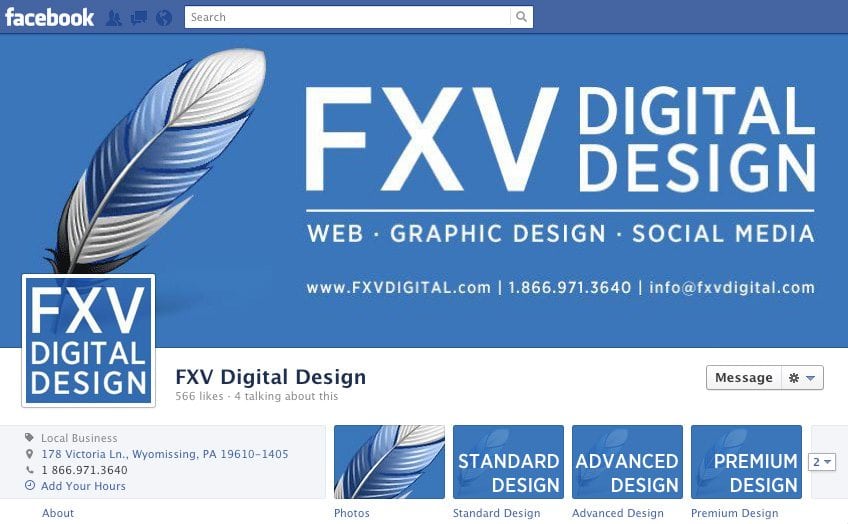
  • Cover photo now available(851px x 315px): Great space for advertising on your page.
  • Profile photo is now a square instead of the long rectangle: This is great because your profile image will be the same in news feeds as well. No more fiddling with thumbnails.
  • You can now add custom thumbnails for your apps to help match your page layout: You no longer have to settle with the app creator’s choice.
  • Custom tabs are now larger (749px wide): Having more real estate is always good!
  • Status updates are now sticky: Keep your most important updates up top for seven days.


What Is No More.

  • The default landing tab option is no more, everyone lands on the wall tab by default.
  • Profile images are s small square now (124 x 124) and they sit inside the cover photo area.
  • The photo strip up top is no more.
  • The tabs are no longer on the left side, but up top instead.

You may or may not like the features that were removed, but in my opinion it’s all good. The fact that we are given more real estate to work with on custom tabs, as well as that nice huge cover photo makes up for it. Facebook nation will figure it out eventually, it always does.

A Few Important Notes

Facebook Timeline for Pages will be rolling out live come March 30th, 2012. This gives you a nice thirty days to figure out your new layout, preview it and publish it early if you choose to.

How Do I Preview The Page? Facebook will allow you to go ahead and make changes to you page in a live preview (only available to admins) before the official launch date. Take advantage of this and get ready. Simply visit your page and click on the ‘preview’ button up top.

Facebook Timeline For Pages Preview Button

How Do I Publish The Page? While you are in preview mode, you will see the option up top giving you the option to publish your page once you are ready to go.

Publish Facebook Timeline For Pages

New Administration Area

Facebook Timeline For PagesThere is a new admin area for you to get acquainted with in order to make updates to your page. It’s conveniently located to the right of the cover photo above the mini-timeline.

The beauty part is that you no longer have to leave your Facebook page in order to make changes. The admin panel slides down and all of your options are right there in front of you. How great is that?!

Facebook Timeline For Pages EditAfter you’ve entered the admin area, click on the ‘Manage’ button and you will see the ‘Edit Page’ button. This will get you to the area you know and love in order to edit specific details about your page.

In case you were wondering, you can view this page here to see all the pages you admin: https://www.facebook.com/pages/status/

How To Manage Your Tabs

Facebook Timeline For Pages Edit TabYou can have up to four showing at one time, but you can’t move the ‘Photos’ tab. In order to view all of your tabs, just click on the small drop down arrow to the right of your last tab.

Once you’ve done that, all of your tabs are viewable and you can now edit the order. If you hover over the tabs, a small pencil will appear in the upper right hand corner. From there you will see ‘Swap position with:’ and you can select the tab to take its place. You can also edit the settings for the tab from this area as well.

Now, one of the best features added to the new page is the ability to change the app’s icon – well, thumbnail actually. Before you had to deal with the icon the developer of the app chose – not anymore.

The first thing you need to do is create an image (111px x 74px). Once you have that taken care of, click ‘Edit Settings’, then next to ‘Custom Tab Image’ click ‘Change’. From there you upload your custom image and you are good to go. No sweat!

On weird thing though – The screen where you upload a new image is in a new tab or window, so after you’ve uploaded a new image, close that window or tab to get back to your edit screen, and click ‘Okay’ to finish it up.

Posting Content To Your Facebook Timeline

You now have a few different choices when posting content to your new Facebook Timeline:

  • Pin to Top: This keeps the post up top like a ‘sticky’ post in a blog.
  • Highlight: This makes your post span both columns of your timeline as oppose to one.
  • Change Date: This allows you to back date any posts.

Facebook Timeline For Pages Posting Content

This definitely makes for interesting conversation now when posting new content. Keeping certain posts pinned to the top can be used for marketing your company, services or new products. It also is a wonderful tool for engaging fans and keeping them occupied on your page, so put some thought into what you are pinning – don’t just pin for pinning’s sake. Also take note that you can either pin or highlight, not both.

In closing, make sure you take a few minutes and check out Facebook’s tutorial site on learning pages. They did a great job laying it out there and will help you understand more fully on how to get the most out of your new Facebook page.

Is your Facebook page being seen by your fans? Probably Not.

January 19, 2012 by  
Filed under Blog, Facebook, Social Media

You have a page for your business and also have lots of fans! What does that mean? Absolutely nothing, according to new research of Facebook pages.

The grim reality is that only 17% of your fan base is actually seeing what you are posting. Sure, they are fans but that means absolutely nothing if your posts don’t come up in their Facebook Newsfeed.

Facebook has recently began to shun low active pages by deeming them useless in a Newfeed. This means that even if your page has over 5000 fans and you post often, if you don’t get a large amount of likes and comments on your page, your fans won’t see your posts. What makes even less sense is that one user who may comment/link your posts all the time STILL won’t see your posts in the Newsfeed until other people start commenting/liking as well.

Now before you start to get angry, we would like to offer you a solution.

The fact is that without constant attention, your Facebook page is going to suffer. Here are some solutions from AllFacebook.com to help get your page back onto the Newsfeeds of your fans:

4 Tips For Solving Facebook Post Visibility Problems

- You must try to get more likes and comments with every one of your posts. Every post that doesn’t get responses lowers the value of your page. Make sure everyone who posts to your page knows this and is capable of doing the next bullet item.

- To get more likes and comments, you need to tell people why they should like and comment on your posts.

- If you aren’t reaching enough fans, you might need to use Facebook advertising either to get more, or to show your page posts as ads. Then do a better job of engaging so you can keep reaching a higher percentage of these new fans.

- If you don’t want to do a good job of engaging fans on your Facebook page, the lower visibility may increase your cost per customer to the point that you may lose your profit potential. In this case, you should just use Facebook advertising to send people to your website instead — fewer steps, lower cost per customer.

Don’t have time to devote to your page? Of course, FXV Digital is here to help. Contact us today and let us run your Social Media for you so you can be sure you are being seen!

How To Add An Admin to Your Facebook Page

November 16, 2011 by  
Filed under Blog, Facebook, Social Media

The constant changing of Facebook’s features and design is always making us look for the “new way” to do certain functions. We often get asked “How do I make someone an admin of my page?”.

Please don’t think you can’t contact us for any type of social media, we’re just looking for

There are two ways to do this, both of which we have written out below. Please keep in mind that an existing admin MUST be one to do so.

  • Go to the page you would like to add an admin of
  • Click “Edit Page” on the upper right corner
  • Click “Manage Admins” on the left side of the page. It is 7 options down on the sidebar list.
  • Start typing in the persons name, and once they show up, click on their name. You can also use their email address if they don’t already like the page.
  • Hit “Save Changes”
  • You are all set with a new Admin!

Here is another way. This way works best if there aren’t too many fans of the page.

  • Go to the page you would like to add an admin of
  • Click on “like this” under the number of people who are fans of the page on the left side
  • Find the name of the person you would to make an admin
  • Click “Make Admin” next to their name
  • You are all set with a new Admin!

If you have any further questions, please don’t hesitate to contact us!

CraftMaster Homes Facebook Design

CraftMaster Homes, Inc. a Richmond-based and locally owned homebuilding company has a mission to deliver creatively designed homes featuring quality products and craftsman-like construction. Above all, they deliver homes of lasting value that will provide years of enjoyment for you and your family.

Custom Facebook Design Address
http://www.facebook.com/craftmaster.homes1?v=app_4949752878

Testimonial
FXV Digital Design designed our Welcome tab on our Facebook Fan Page!  The did a fantastic job for a great price and I would highly recommend them.

Array of Reyes Facebook Design

Array of Reyes isn’t your average Southern Cali musical duo. Appealing to Hip Hop Heads, Head Bangers and House Cats alike, Array of Reyes’s confluence of Shred Guitar, Electro Themes and Underground Hip Hop elements coalesce masterfully bringing a fresh sound to today’s music scene.

Custom Facebook Design Address
http://www.facebook.com/arrayofreyes